tl;dr Use Claude Code in WSL inside Windows Terminal? Copying an image in Windows and pressing Ctrl+V in Claude Code doesn't work. Three things break: (1) WSL only hands Windows images to the Linux side in an old BMP format Claude Code can't read; (2) WSL also keeps quietly overwriting your fixes a moment later; (3) Windows Terminal grabs Ctrl+V before Claude Code can see it. The fix is a small Windows program that converts the image to PNG, a Linux script that puts it on the Linux clipboard (and re-asserts once after WSL overwrites it), and one extra keybinding for Claude Code so the keystroke actually reaches the program.
Copy an image in Windows. Open Claude Code inside a WSL terminal launched from Windows Terminal. Press Ctrl+V. Nothing happens.
Three small things between the Windows clipboard and Claude Code’s chat input are broken. Each one is harmless on its own. Together they make image paste fail completely. Here’s what they are and the workaround I built until the upstream fixes catch up.
What’s actually broken
1. The Windows-to-Linux clipboard sync only knows about an ancient image format
WSL has a built-in piece called WSLg (the “g” is for graphics). Its job is to make Windows and the Linux side share things — including the clipboard, so copy-paste works across the boundary. For text, it works fine. For images, it does two things badly.
First, it only syncs images in one direction: from Windows to Linux. Anything copied from a Linux app doesn’t flow back to Windows as an image.
Second, when WSLg sends a Windows image over to Linux, it converts it into a single, dated format — a specific old BMP variant that uses an obscure colour encoding (“BI_BITFIELDS”). Most software’s BMP readers can’t handle it. Claude Code’s reader is one of those. It tries to read what arrives, gets nothing useful, and gives up — silently. No error, no toast, no visible failure. The image just doesn’t attach.
(This is a known bug: claude-code#50552.)
2. The same Windows-to-Linux sync silently overwrites your workarounds
You might think: fine, I’ll bypass WSLg for images. Read the Windows clipboard myself, convert the image to PNG, push the PNG straight onto the Linux clipboard. Claude Code will then find a PNG when it looks for an image, and the paste will work.
There’s even a standard Linux command for putting things on the clipboard: wl-copy. So you do exactly that — Windows image → PNG → wl-copy --type image/png.
It works. For a moment. Then it stops working again. Here’s what WSL does to you:
- You put a PNG on the Linux clipboard.
- WSLg notices the Linux clipboard changed, and dutifully syncs it back to Windows. The Windows clipboard now reflects “PNG.”
- The Windows clipboard just changed. That fires WSLg’s other half — the half that pushes Windows changes over to Linux. As we know from problem #1, that half only knows how to push BMP.
- So your good PNG on the Linux side gets overwritten with the broken BMP, shortly after you put it there.
The cruellest part: the program you wrote to watch the Windows clipboard never sees step 4 happen. WSLg writes to the Linux clipboard directly — it doesn’t go through the Windows clipboard to do it. So from your watcher’s point of view, the Linux clipboard just silently mutates, with nothing for you to react to.
3. Windows Terminal eats Ctrl+V before Claude Code sees it
Suppose you fix everything above and a real PNG sits reliably on the Linux clipboard. Press Ctrl+V in Claude Code. Still nothing happens.
The reason: Windows Terminal — the program you’re typing into — has its own meaning for Ctrl+V. It’s the standard “paste text from the Windows clipboard” shortcut. So when you press Ctrl+V inside Windows Terminal:
- Windows Terminal sees the keystroke first.
- It pastes (or tries to paste) the Windows clipboard as text into the terminal input.
- The keystroke never makes it down to the Linux side.
- Claude Code’s image-paste code (internally named
chat:imagePaste) never runs.
The terminal is one layer above Claude Code. It eats the input before the program below can react.
The fix
Three small components, one per failure, laid out in the diagram below.
clip-listener.exe— runs on Windows and encodes each clipboard image as a real PNG via Windows’ own GDI+. Sidesteps the BMP problem (#1).wsl-clip-bridge— runs in WSL, pushes the PNG onto the Linux clipboard withwl-copy, and re-asserts once half a second later if WSLg has overwritten our PNG with the broken BMP. Handles the silent clobber (#2).- Alt+V keybinding in
~/.claude/keybindings.json— triggers Claude Code’schat:imagePastehandler without going through Ctrl+V, which Windows Terminal would eat. Routes around #3.
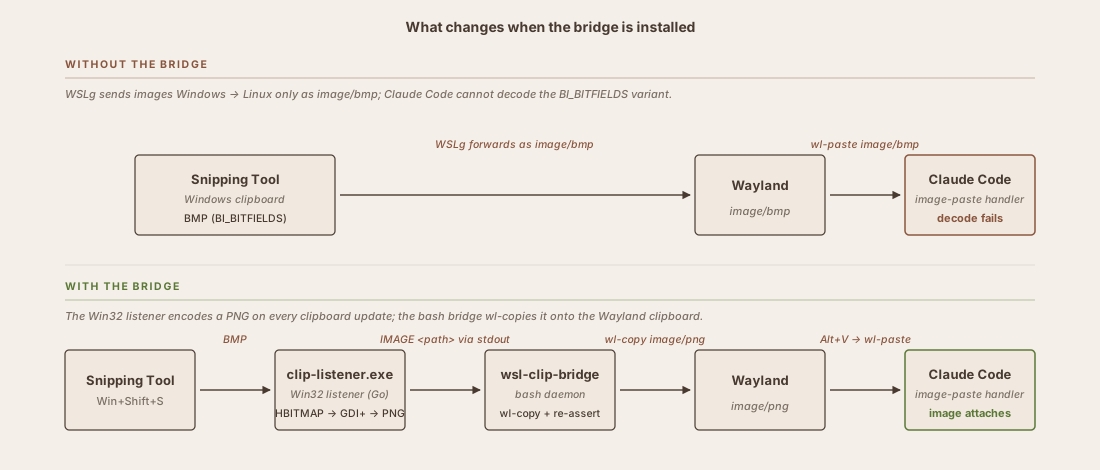
What changes when the bridge is installed. Without it (top), images flow straight to Claude Code as broken BMP and the paste fails. With it (bottom), a Windows listener encodes a real PNG and a Linux script puts it on the Linux clipboard, re-asserting once after WSLg's overwrite. The user presses Alt+V instead of Ctrl+V to bypass Windows Terminal.
End to end: snip an image in Windows, press Alt+V in Claude Code, image attaches.
The full source — the Go listener, the bash bridge, the install script, and a more detailed walkthrough — lives at github.com/rajveerb/wsl-clip-bridge.
Try it yourself
Prerequisites: WSL2 with WSLg (Windows 11, or a recent Windows 10 + WSL update), Go 1.20+ on the Linux side for cross-compiling the Windows binary.
git clone https://github.com/rajveerb/wsl-clip-bridge.git
cd wsl-clip-bridge
sudo apt install wl-clipboard
./install.sh --with-autostart --with-keybinding
That last command does four things: cross-compiles the Windows-side listener (GOOS=windows GOARCH=amd64), drops the binaries into ~/.local/share/wsl-clip-bridge/ and ~/.local/bin/, appends a snippet to ~/.bashrc that starts the bridge on every new WSL shell, and writes ~/.claude/keybindings.json with alt+v → chat:imagePaste.
Open a fresh WSL terminal. The bridge starts in the background. Verify:
# copy any image in Windows (Win+Shift+S)
wl-paste -l   # should print image/png
Then in Claude Code, press Alt+V. The image attaches.
The repo README walks through each step in more detail (running without the install script, stopping or uninstalling the bridge, debugging via the log).
Whose problem is it?
Four things contribute to the failure. The first problem above (“an ancient image format”) is really two separate issues, so the table splits them apart:
| # | Failure | Whose problem |
|---|---|---|
| 1 | WSLg only sends Windows images to Linux as image/bmp |
Microsoft (WSLg) |
| 2 | Claude Code can’t read the BMP it actually receives | Claude Code — one-PR fix |
| 3 | WSLg overwrites the Linux clipboard from Windows, silently | Microsoft (WSLg); only matters because of #1 and #2 |
| 4 | Windows Terminal grabs Ctrl+V before WSL programs see it | Microsoft (Windows Terminal); Claude Code could route around it |
#1 is hardcoded in WSLg’s clipboard bridge (rdpclip.c in Microsoft’s Weston fork): exactly five Windows→Linux format mappings, and the only image one is CF_DIB → image/bmp. The strings image/png and image/jpeg don’t appear in the source. The upstream issue microsoft/wslg#833 has been open since September 2022.
#2 is broader than the post above implies, and more fixable than I first thought. Claude Code bundles sharp as its image library, in its WebAssembly build. That build’s bundled libvips has no BMP loader — not just no BI_BITFIELDS variant, no BMP support of any kind. Claude Code does detect BMP on the clipboard and try to convert it via sharp(bmpBuffer).png().toBuffer(), but the call dies with “Input buffer contains unsupported image format.” Despite the user-facing implication that BMP is supported, sharp’s WASM build can’t read any BMP. The actual upstream fixes are: ship sharp’s native libvips build (which has BMP support); ship a small BMP→PNG converter that doesn’t go through sharp at all; or shell out to ImageMagick or GDI+ on detection failure. Any of these obsoletes this entire bridge.
#3 isn’t hypothetical. The bridge’s log on this machine shows it directly, with timestamped lines like re-asserted clip-1.png (was: image/bmp,) after every Snipping Tool capture. Interestingly, synthetic Clipboard::SetImage calls from PowerShell never triggered it; only the Snipping Tool path did, which suggests WSLg keys off something specific in how Snipping Tool finalises its writes. A single re-assertion at +0.5 s catches it reliably; the three additional retries I tried earlier never fired.
#4 is hardcoded in a place that surprised me. Windows Terminal’s Ctrl+V handler isn’t in defaults.json (that file only binds Ctrl+Shift+V). It’s in ConHost’s windowio.cpp, where the inputKeyInfo check on 'V' with IsInVirtualTerminalInputMode and ShouldTakeOverKeyboardShortcuts swallows the keystroke before the inner program ever sees it. Tracked at microsoft/terminal#5790, open and on “Backlog” since 2020.
The kicker on #4 — Claude Code already defaults chat:imagePaste to Alt+V on native Windows. It just doesn’t apply that default in WSL, because WSL reports as Linux and the Windows-specific code never runs. The cleanest upstream fix isn’t even new functionality: detect “running in WSL inside Windows Terminal” at startup and apply the existing Windows Alt+V default there too. No keybinding file required from the user.
When this stops being needed
- WSL starts sending PNG to Linux → the Windows listener is no longer needed.
- Claude Code learns to read the BMP variant → the Windows listener is no longer needed.
- Windows Terminal stops grabbing Ctrl+V → the custom keybinding is no longer needed.
When all three happen, removing the workaround is one pkill, a couple of rms, and taking the relevant snippets out of .bashrc and ~/.claude/keybindings.json. Nothing else on the system depends on it.